



Blur a face in a photo, automatic AI detection
AI face detection, studio review, and clean export in YouBlur Studio.



121,801 photos and videos anonymized


How to blur a face in a photo


Detect and adjust
AI suggests faces to blur. You confirm or refine on the canvas.

Export
Download an anonymized image for social posts, reports, or archives.


Keep faces clear, blur everything else
Blur face in photo FAQ
How do I blur a face in a photo on iPhone?
Open YouBlur Studio in Safari or another mobile browser, import the photo, review the detected faces, then export the blurred image.
Can I blur multiple faces at once?
Yes. YouBlur detects several faces in the same photo so you can anonymize a group picture without selecting each face manually.
Is the blur permanent?
Yes. Once exported, the blur is baked into the output image. Keep the original file separately if you may need it later.
Can I choose which face to blur in a photo?
Yes. Review the AI suggestions in the studio and adjust masks before export.
What photo formats are supported?
JPG, PNG, and WebP are the most common supported formats.
3 façons d’anonymiser avec YouBlur.com Edit easily with YouBlur.com
12+ photo and video processing tools.
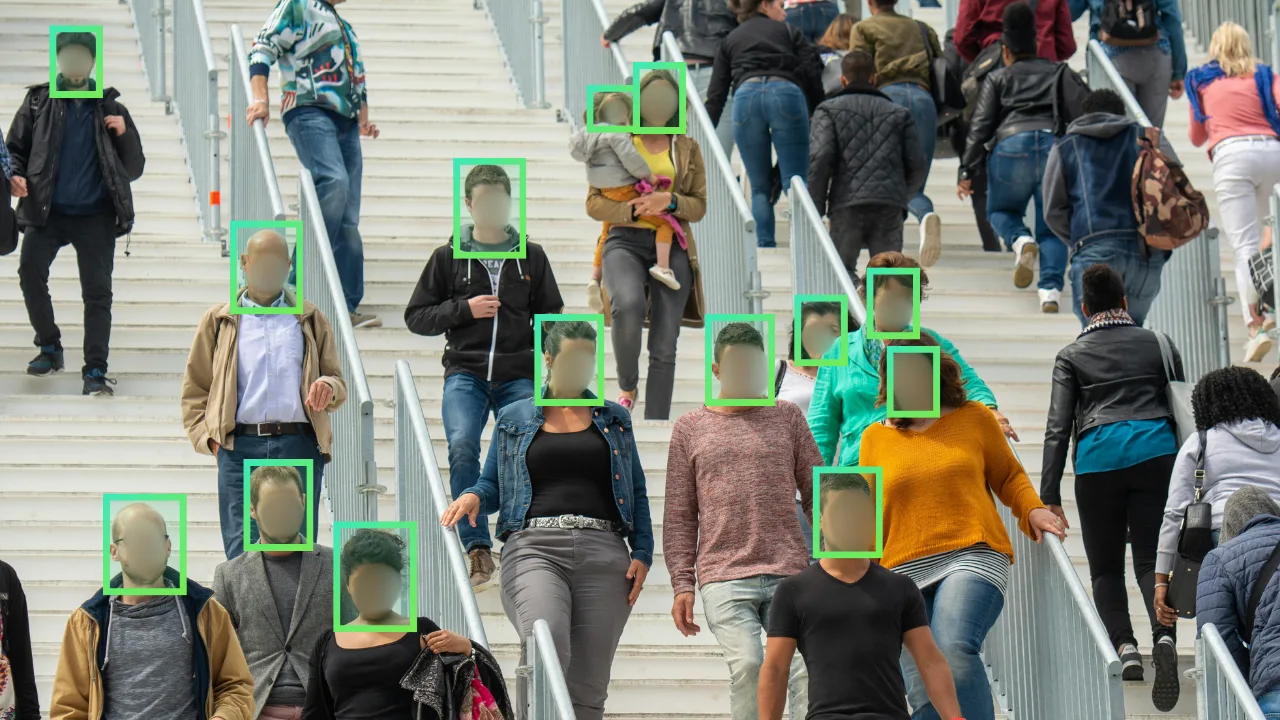
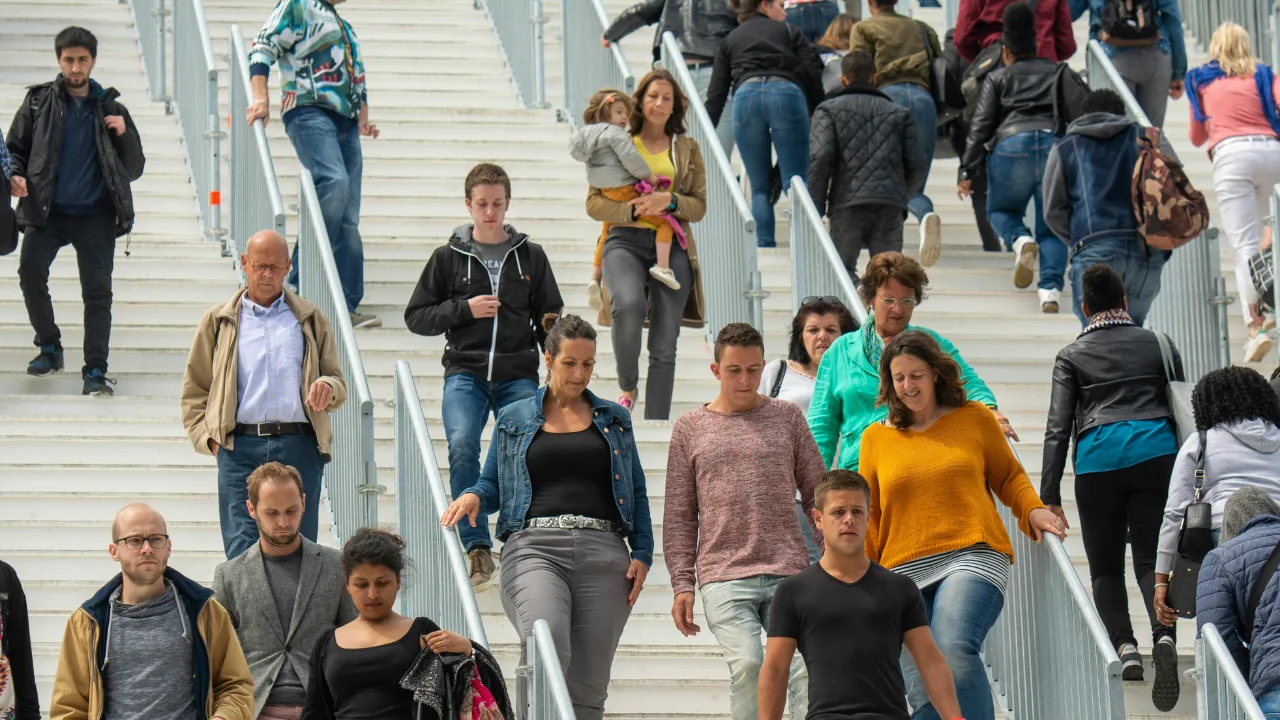 Before